Current Release: 3.0.65
Video guides for getting the most out of audioCue, including backing tracks, lyrics, setlists and live performance.
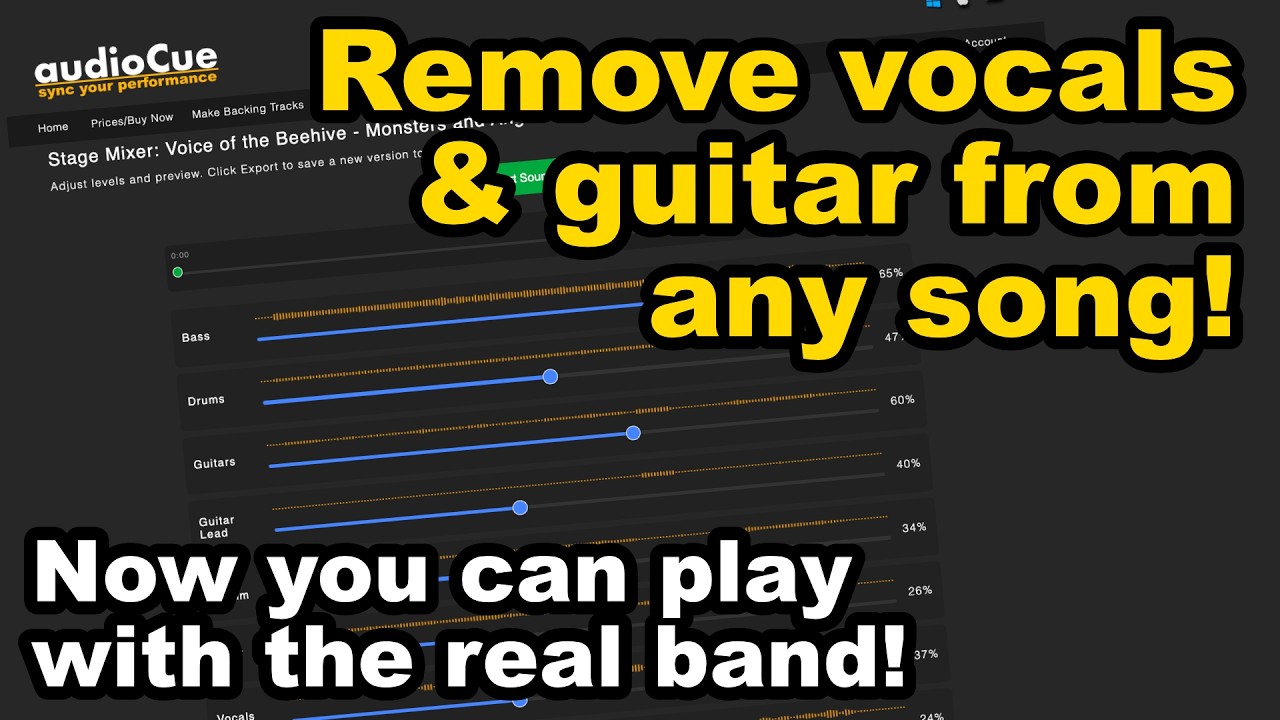
Remove Vocals & Guitar From ANY Song (Keep The Band) and turn any song into a backing track using audioCue.
In this video, I’ll show you how to remove vocals and control instruments like guitar so you can create your own backing tracks from the original recording — not karaoke or MIDI versions.
Upload your track, adjust the mix, and export a ready-to-use backing track in minutes.
You must have the rights or permission to use any audio you upload. This tool is intended for personal use and practice.
Try it here:
https://audiocue.co.uk
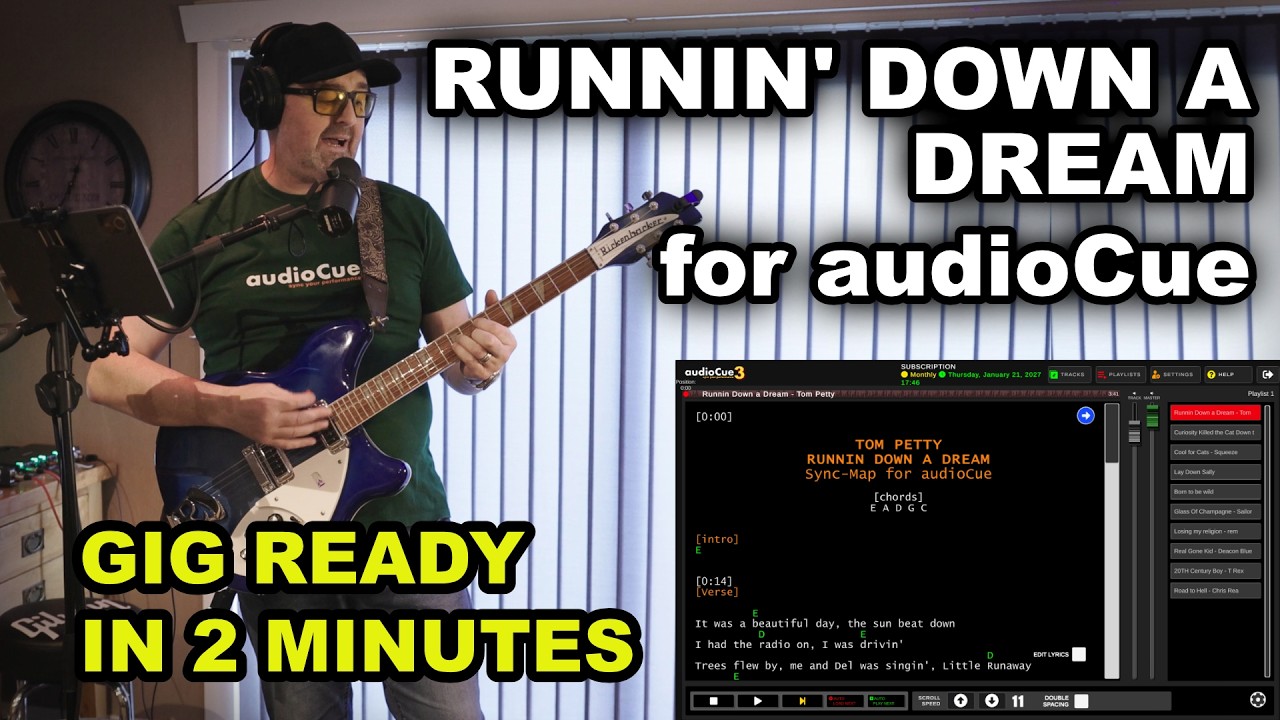
This is a full live demo of Runnin\' Down a Dream by Tom Petty using audioCue 3, the backing track player and professional lyrics prompter designed for solo musicians who need 100% confidence on stage.
? GIG THIS SONG IN UNDER 2 MINUTES: I’ve pre-timed the lyrics and chords so you don\'t have to. Follow these three steps:
Download audioCue 3: https://audiocue.co.uk
Get the Backing Track & Sync-Map: https://audiocue.co.uk/track/Runnin-Down-a-Dream-tom-petty-backing-track
THE WORKFLOW: Import your MP3 into audioCue, copy my Pro-Sync Map from the link above, and hit \"Paste from Memory\". You’re done. No manual timing, just perfect synced lyrics for Tom Petty - Runnin\' Down a Dream.
MY SETUP:
App: audioCue 3 (Android/iOS/PC/Mac)
Audio Interface: Roland Rubix 44
Guitar: Rickenbacker 360
Pedals: Boss Blues Driver, Boss Noise Suppressor
Amp: Orange Crush 120
Mic: Shure SM7B
ABOUT AUDIOCUE: audioCue is the backing track player and professional lyrics prompter built by a gigging musician for gigging musicians. It automates your setlist, scrolling your lyrics and chords in perfect sync with your backing tracks so you can focus on the performance.
#audioCue #BackingTracks #LyricsPrompter #TomPetty #SoloMusician #GigReady #LiveMusicTech
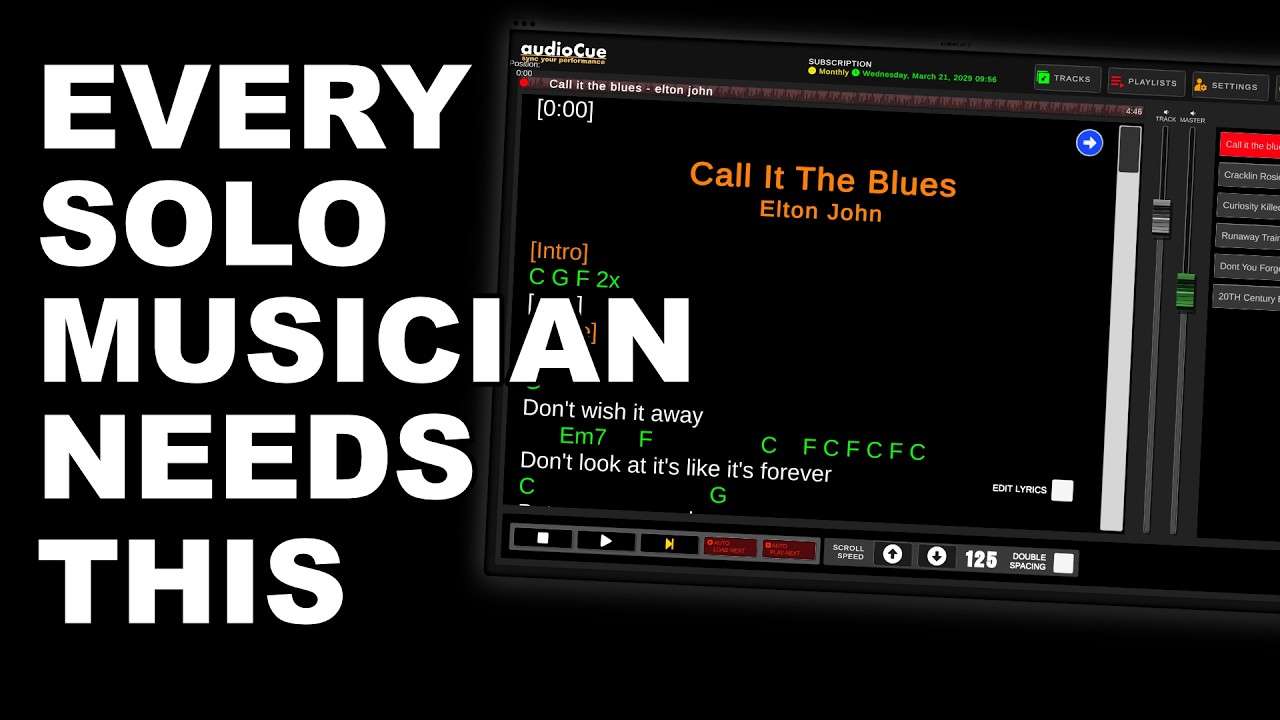
If you’re a solo musician like me, you’ll know that split-second panic when the next verse is coming and your mind just goes blank.
That’s exactly why I built AudioCue.
AudioCue isn’t about reading lyrics off a screen. It’s about that quick, reassuring glance that tells you what’s coming next, giving you the confidence to know your gig running just how you want it.
You set your songs up once with lyrics, chords and timestamps, and from then on your lyrics stay perfectly in time with your backing tracks.
You can also build playlists and see exactly how long your set will run, so you can plan your whole night with confidence and without worrying about what’s next.
? Download AudioCue here: https://audiocue.co.uk
If you need any help at all, or just want to chat with me and other musicians using AudioCue, you’ll find me in the AudioCue Facebook group.
https://facebook.com/groups/audiocue
#solomusician #livemusic #acousticguitar #backingtracks #giggingmusician #openmic #lyrics
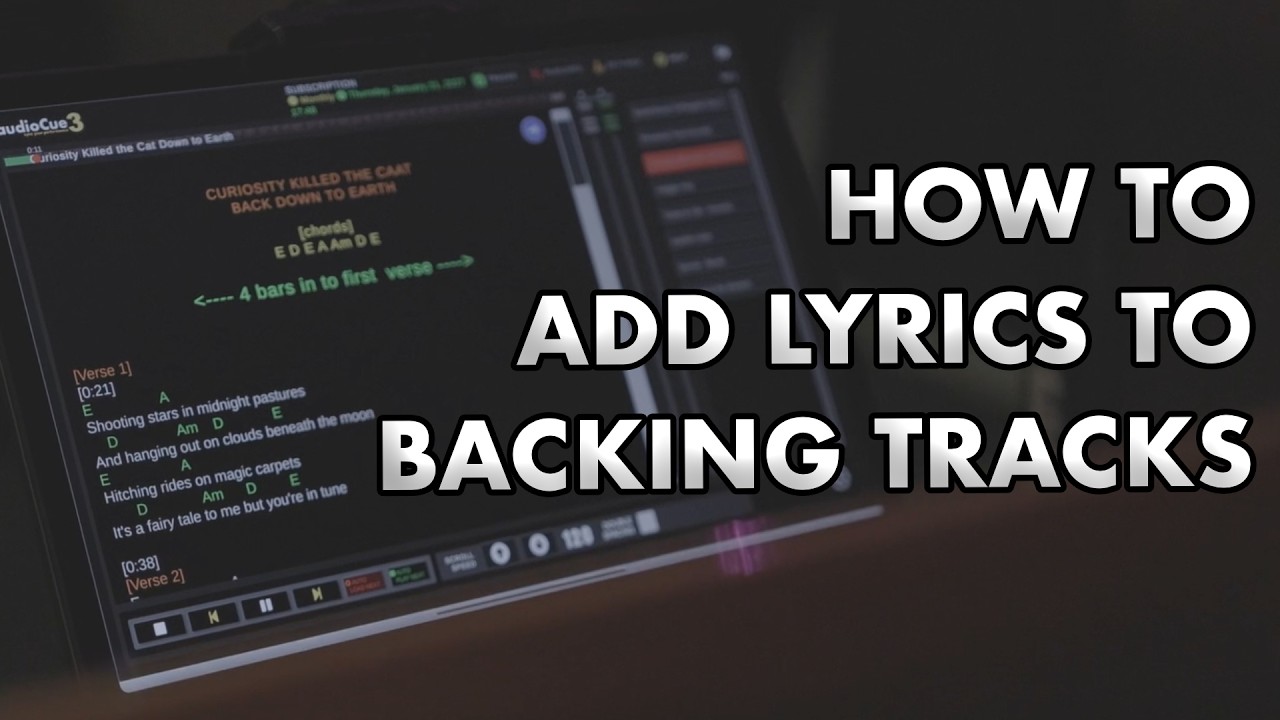
This tutorial shows how to add lyrics to a backing track in AudioCue.
You’ll see how to select a track, open the lyrics editor using the mic icon, search for lyrics and chords using Ultimate Guitar or IR Lib, copy the lyrics from your browser, and paste them into AudioCue before saving them to the track.
This tutorial applies to AudioCue 3 (version 3.0.37 and above).
Recorded on macOS, but the same process applies on all supported devices.
If you have questions about adding or editing lyrics, leave a comment on this video.
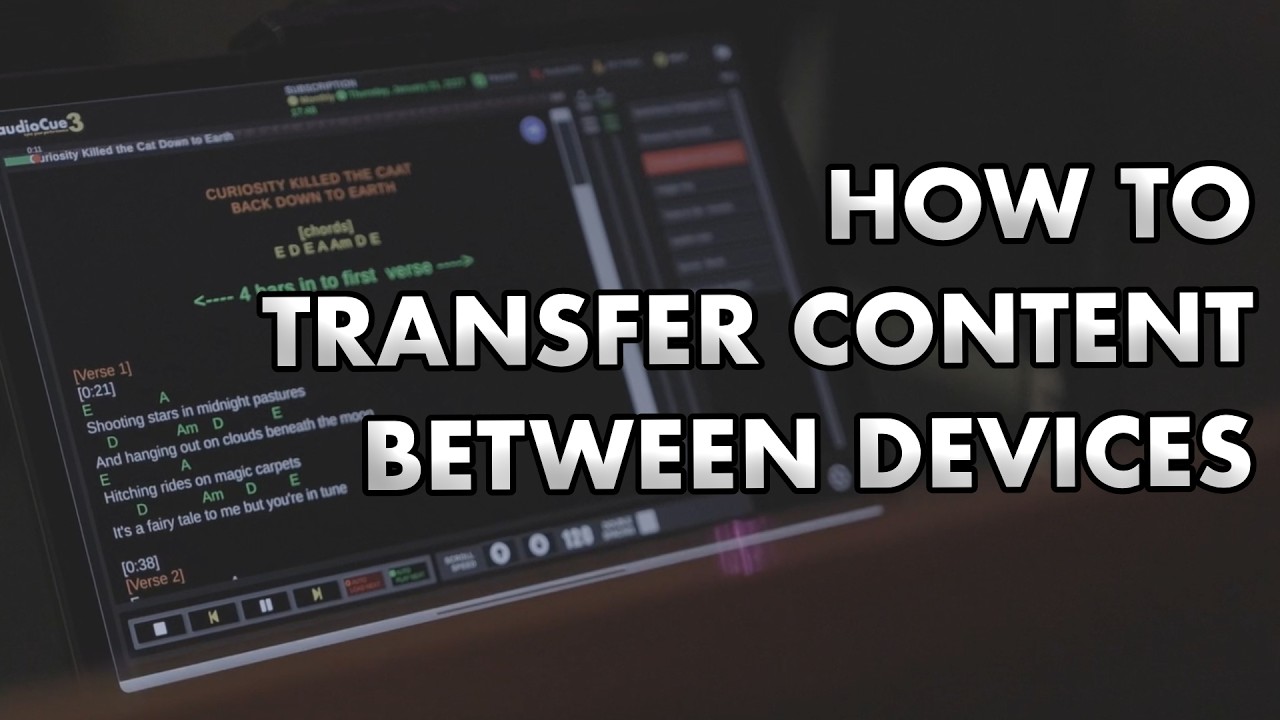
This tutorial shows how to transfer tracks between devices using AudioCue’s export and import tools.
You’ll see how to export selected tracks from the Tracks section, save them as a zipped file, and then import that file on another device. This allows you to move tracks, lyrics, and related data between devices quickly and safely.
This tutorial applies to AudioCue 3 (version 3.0.37 and above).
Recorded on macOS, but the same process applies on all supported devices.
If you have questions about exporting or importing tracks, leave a comment on this video.
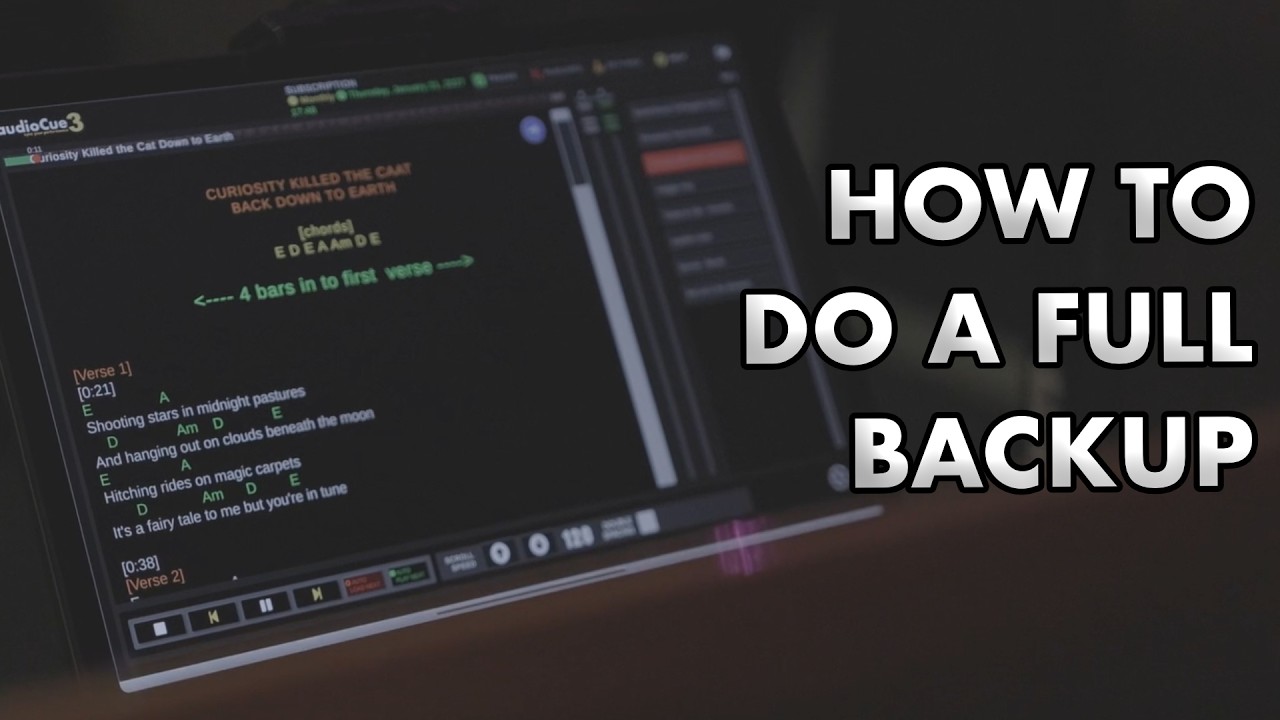
This tutorial shows how to back up all your AudioCue content.
You’ll see how to use the Export option in the Tracks section to back up all tracks and playlists. The video demonstrates creating a zipped backup file and saving it to your computer or device so it can be restored later or transferred to another device.
This tutorial applies to AudioCue 3 (version 3.0.37 and above).
Recorded on macOS, but the same process applies on all supported devices.
If you have questions about backups or exporting your data, leave a comment on this video.
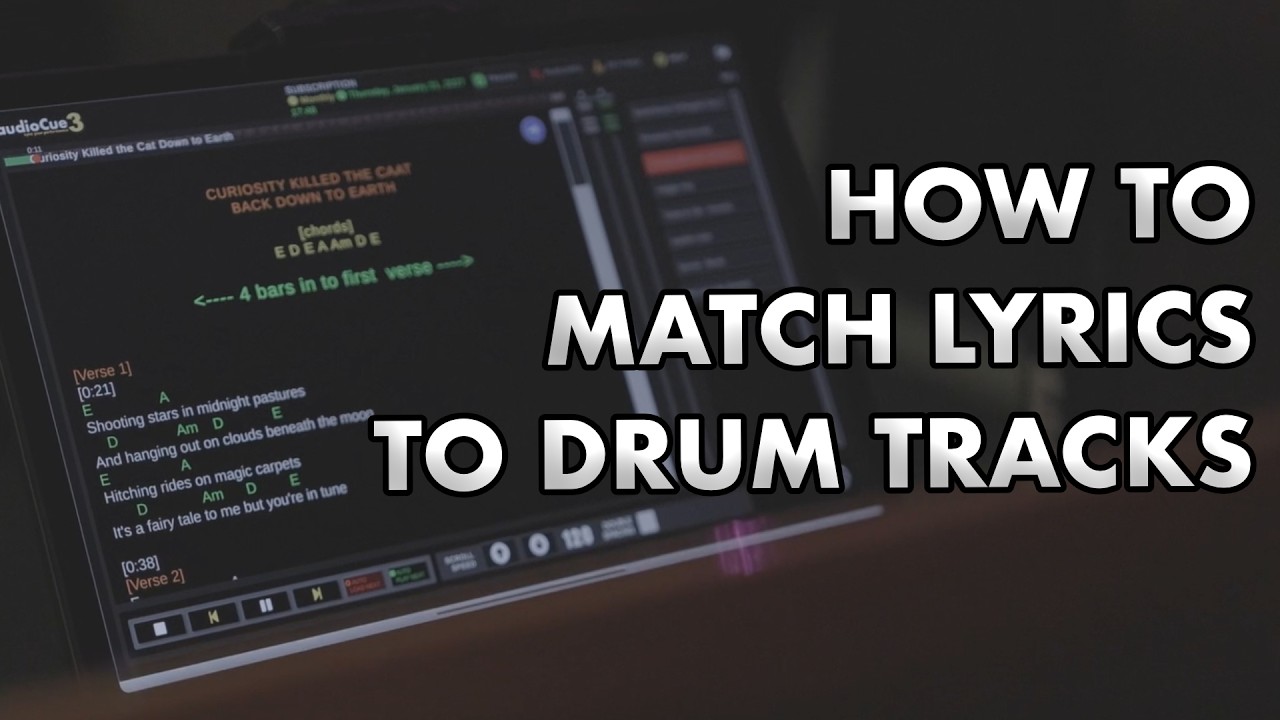
This tutorial shows how to sync your lyrics with the drum sequencer timeline in AudioCue.
You’ll see how to use the visible time stamps in the drum timeline and apply them directly to your lyrics using the lyrics editor. The video demonstrates placing time stamps at section changes, adjusting spacing, and checking alignment by scrubbing and playing back sections of the song.
By the end, your lyrics scroll and highlight in time with the drum arrangement, landing exactly where they should during playback. The tutorial finishes by adding the completed song back into a playlist and playing it through in full.
This tutorial applies to AudioCue 3 (version 3.0.37 and above).
Recorded on macOS, but the same process applies on all supported devices.
If you have questions about syncing lyrics to the drum timeline, leave a comment on this video.
This tutorial shows how to add drum grooves to the timeline to build a full song arrangement in AudioCue.
You’ll see how to drag grooves onto the timeline, quickly duplicate grooves to fill a song, and arrange sections such as intros, verses, and choruses. The video demonstrates how playback follows the timeline, how the active groove is highlighted during play, and how total song duration is calculated as you build.
It also covers zooming in and out of the timeline and using play and stop controls to review your arrangement from the start.
This tutorial applies to AudioCue 3 (version 3.0.37 and above).
Recorded on macOS, but the same process applies on all supported devices.
If you have questions about arranging grooves or building song timelines, leave a comment on this video.
This tutorial shows how to create and edit grooves in the AudioCue drum sequencer.
You’ll see how to start a new groove, name it, set the number of bars, choose a colour, and add drum hits using the grid. The video covers playing and pausing grooves, setting BPM, saving grooves, and cloning existing grooves to quickly create variations such as verses and choruses.
It also demonstrates editing beats, changing groove colours, and building anything from a simple metronome-style groove to more detailed drum patterns.
This tutorial applies to AudioCue 3 (version 3.0.37 and above).
Recorded on macOS, but the same process applies on all supported devices.
If you have questions about creating or editing grooves, leave a comment on this video.
This tutorial shows how to access the drum sequencer in AudioCue.
You’ll see how to add a blank acoustic track and use the drum button on that track to open the drum sequencer. The drum sequencer is accessed directly from an acoustic track and does not require an audio file.
This tutorial applies to AudioCue 3 (version 3.0.37 and above).
Recorded on macOS, but the same process applies on all supported devices.
If you have questions about accessing or using the drum sequencer, leave a comment on this video.
This tutorial shows how to add an acoustic track in AudioCue.
You’ll see how to create a blank acoustic track using the Acoustic button in the Tracks section, rename the track, and save or cancel changes using the tick and cross controls. Acoustic tracks can be used on their own or with the built-in drum sequencer.
This tutorial applies to AudioCue 3 (version 3.0.37 and above).
Recorded on macOS, but the same process applies on all supported devices.
If you have questions about acoustic tracks or using them with the drum sequencer, leave a comment on this video.
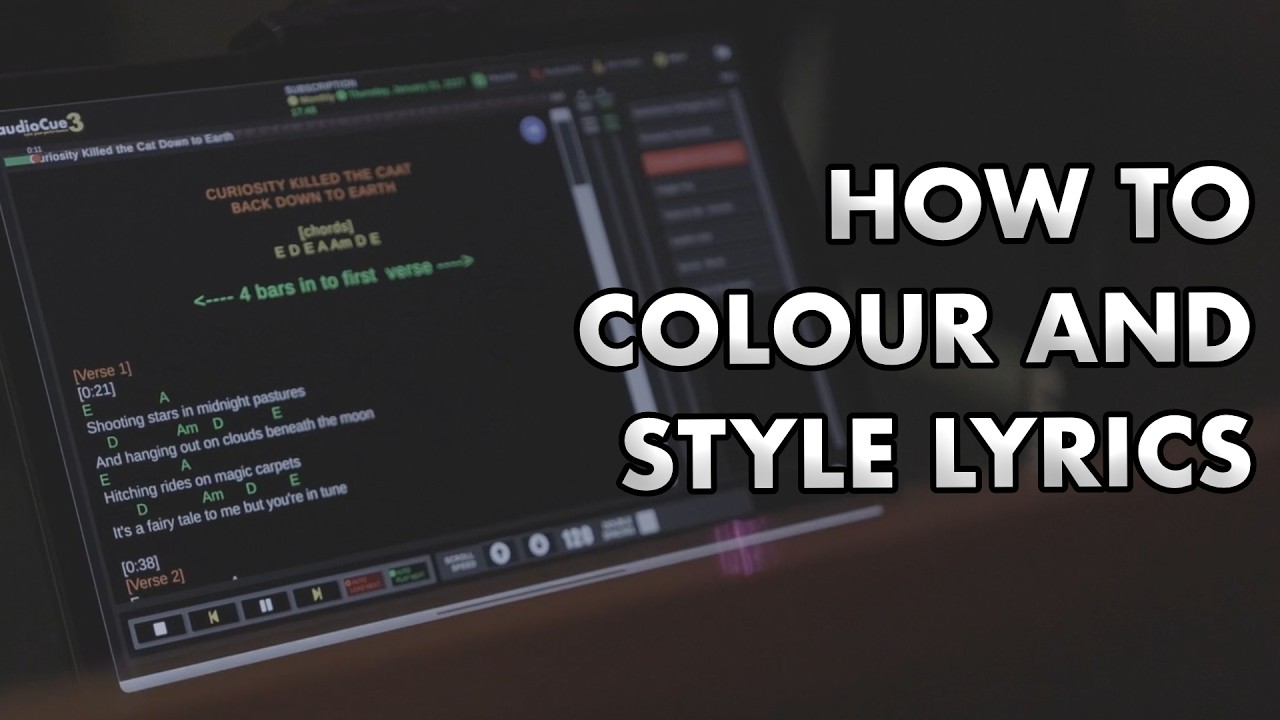
This tutorial shows how to use the inline editor in AudioCue to format and colour lyrics.
You’ll see how to open the inline editor from the player, apply colour tags to lyrics, and use formatting tags such as bold and underline. The video also demonstrates nesting tags together so you can combine styles correctly and see the results instantly in the player.
This tutorial applies to AudioCue 3 (version 3.0.37 and above).
Recorded on macOS, but the same process applies on all supported devices.
If you have questions about lyric formatting or inline tags, leave a comment on this video.
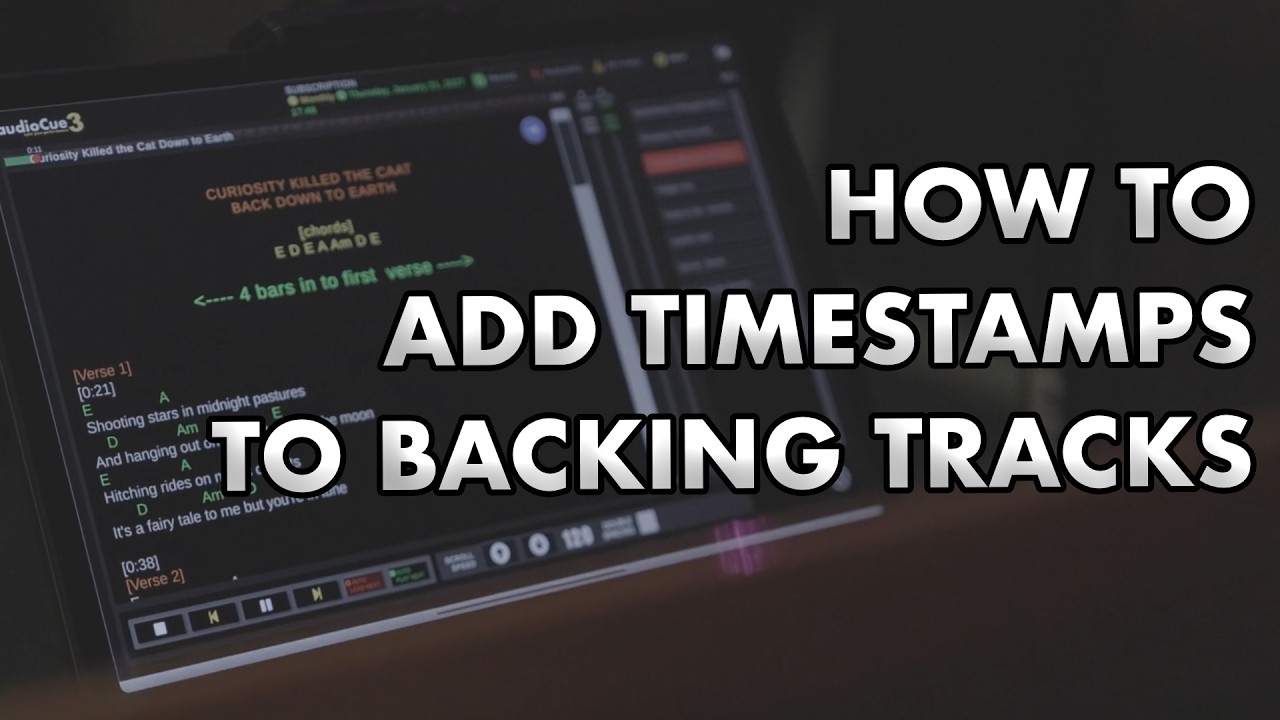
This tutorial shows how to add time stamps to lyrics in AudioCue so they scroll into view exactly when you want them to.
You’ll see how to add an initial zero time stamp, place additional time stamps using the correct format, and use the player to listen, scrub, and fine-tune lyric timing. The video explains how time-stamped sections control scrolling behaviour and how to adjust or split sections for precise control during playback.
This tutorial applies to AudioCue 3 (version 3.0.37 and above).
Recorded on macOS, but the same process applies on all supported devices.
If you have questions about time-stamped lyrics or scrolling behaviour, leave a comment on this video.
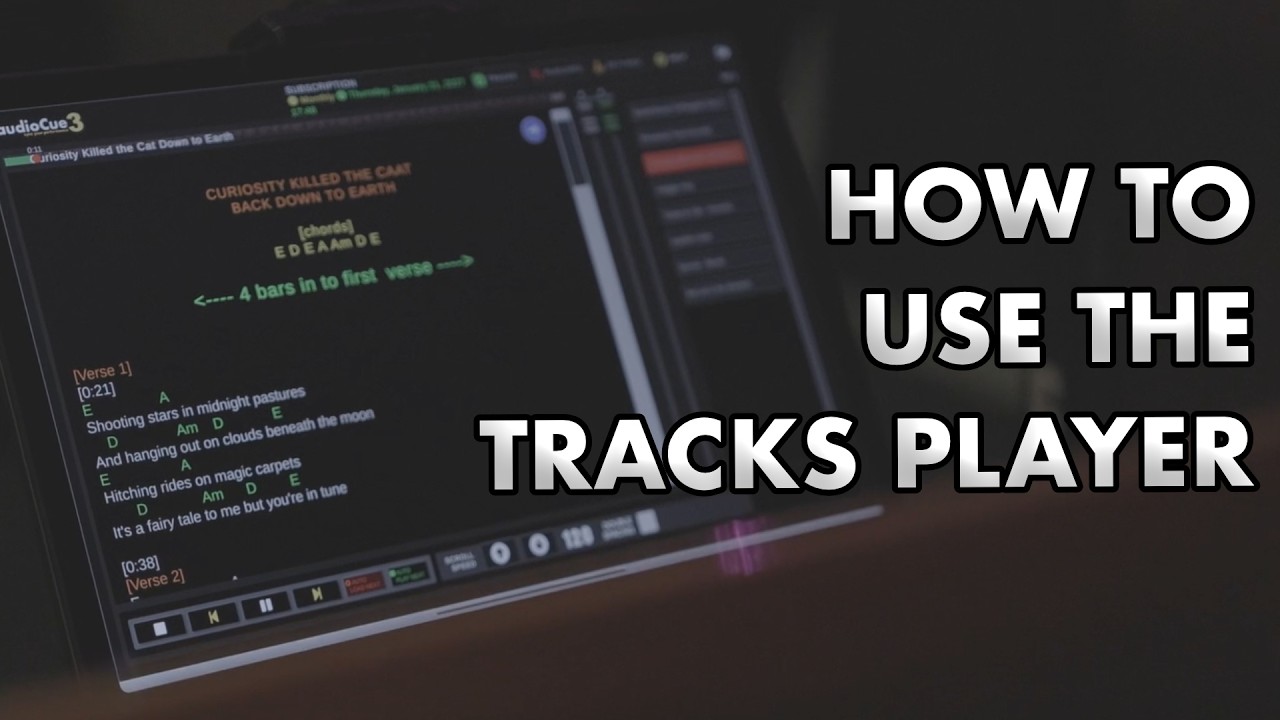
This tutorial explains how to use the AudioCue player to play tracks from a playlist.
You’ll see how to open the player from the playlist view, select a track, play and pause audio, and have lyrics load and scroll in sync with the music. The video covers all player controls, including stop, previous and next track, autoload next, autoplay next, and scroll speed.
It also explains lyric display options such as double spacing, font selection, font size, colour mode, and window expansion, along with track volume versus master volume. The tutorial demonstrates how autoplay timers work between tracks and how to disable automatic lyric scrolling if required.
This tutorial applies to AudioCue 3 (version 3.0.37 and above).
Recorded on macOS, but the same process applies on all supported devices.
If you have questions about using the player or playback controls, leave a comment on this video.
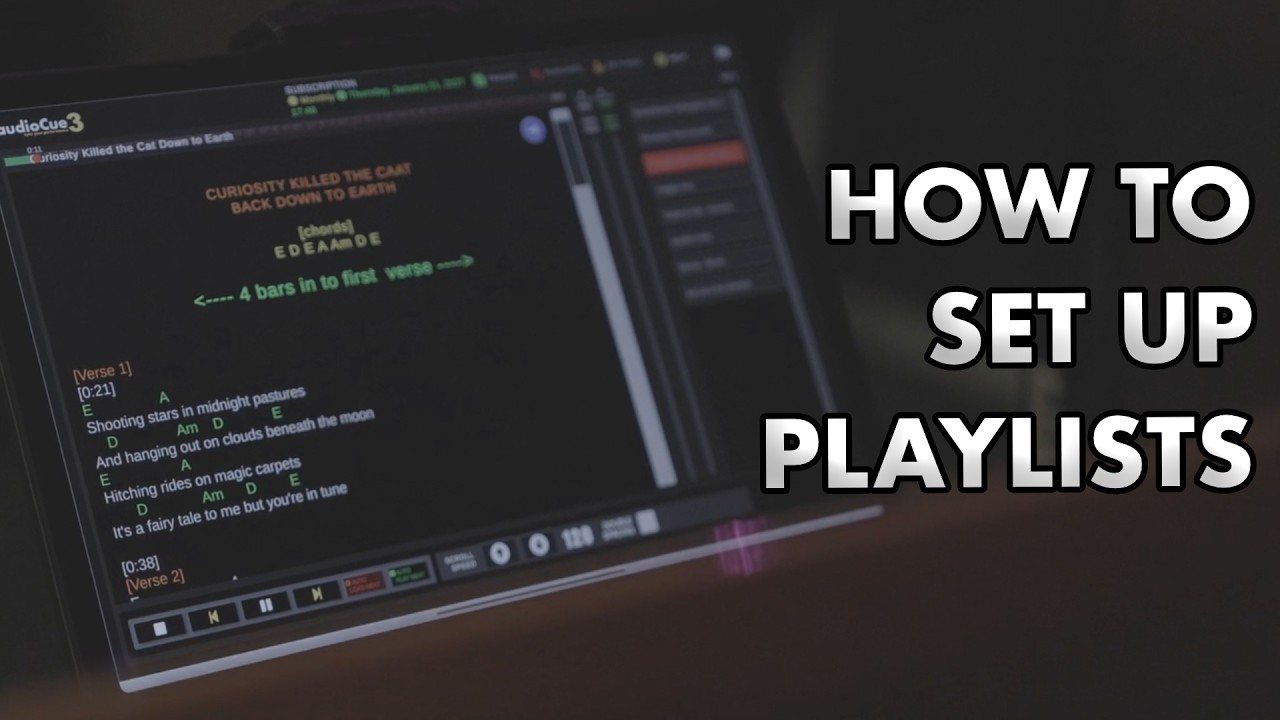
This tutorial shows how to create, edit, and use playlists in AudioCue.
You’ll see how to add and name a playlist, rename or delete it, view available tracks, and build a playlist by dragging tracks into it. The video also covers reordering tracks, seeing total playlist duration, managing multiple playlists, and checking which playlists a track belongs to.
It also demonstrates the playlist search feature, allowing you to quickly find and add specific tracks.
This tutorial applies to AudioCue 3 (version 3.0.37 and above).
Recorded on macOS, but the same process applies on all supported devices.
If you have questions about playlists or track organisation, leave a comment on this video.
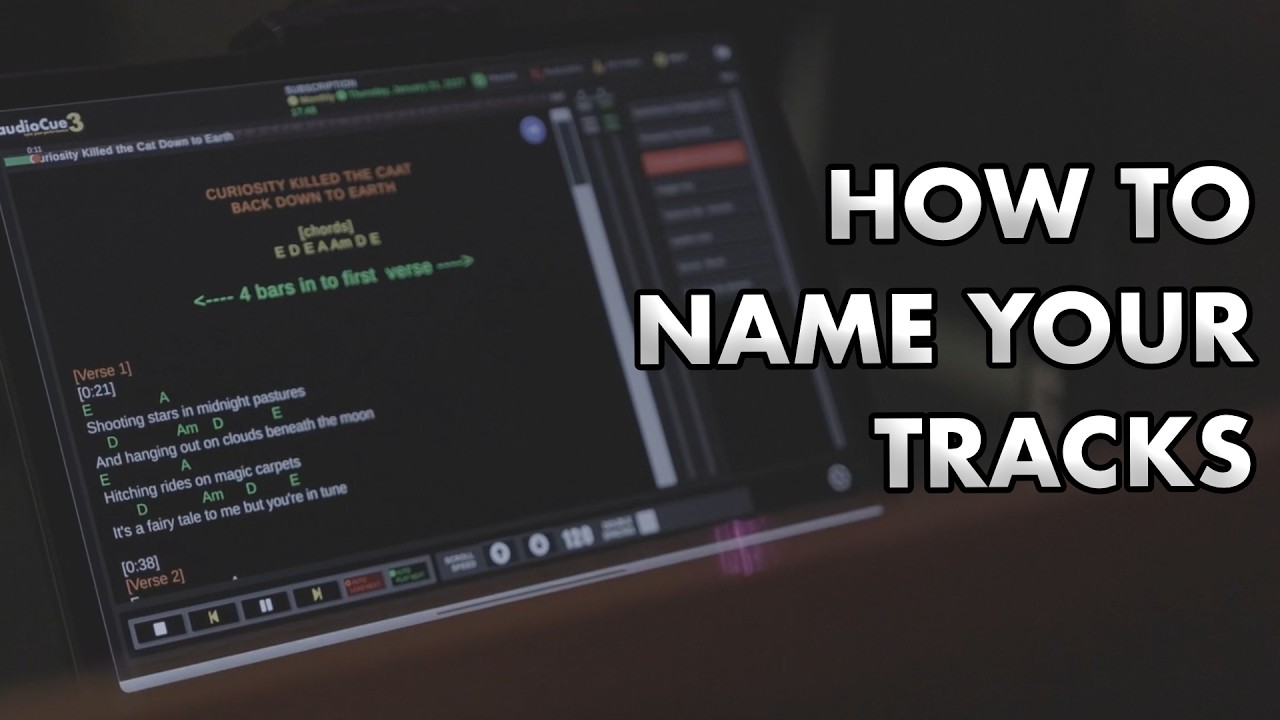
This tutorial shows how to rename tracks in AudioCue.
You’ll see how to open the track editor from the Tracks section, use the blue pencil icon to edit a track name, and save the change using the blue tick. This works for both acoustic tracks and backing tracks.
This tutorial applies to AudioCue 3 (version 3.0.37 and above).
Recorded on macOS, but the same process applies on all supported devices.
If you have questions about renaming or managing tracks, leave a comment on this video.
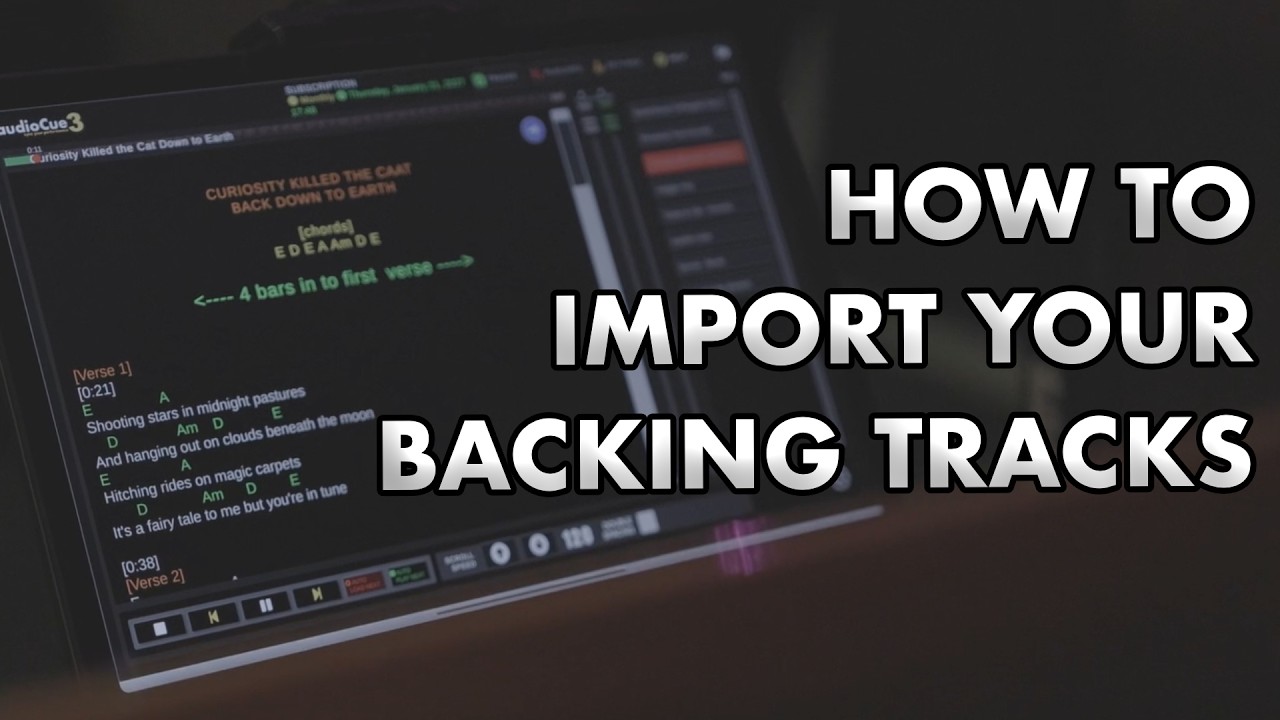
This tutorial shows how to import MP3 and WAV backing tracks into AudioCue.
You’ll see how to open the Tracks section, use the Add Tracks button, select audio files using your device’s native file browser, and upload them into AudioCue ready for use.
This tutorial applies to AudioCue 3 (version 3.0.37 and above).
Recorded on macOS, but the same process applies on all supported devices.
If you have questions about importing tracks or supported file types, leave a comment on this video.
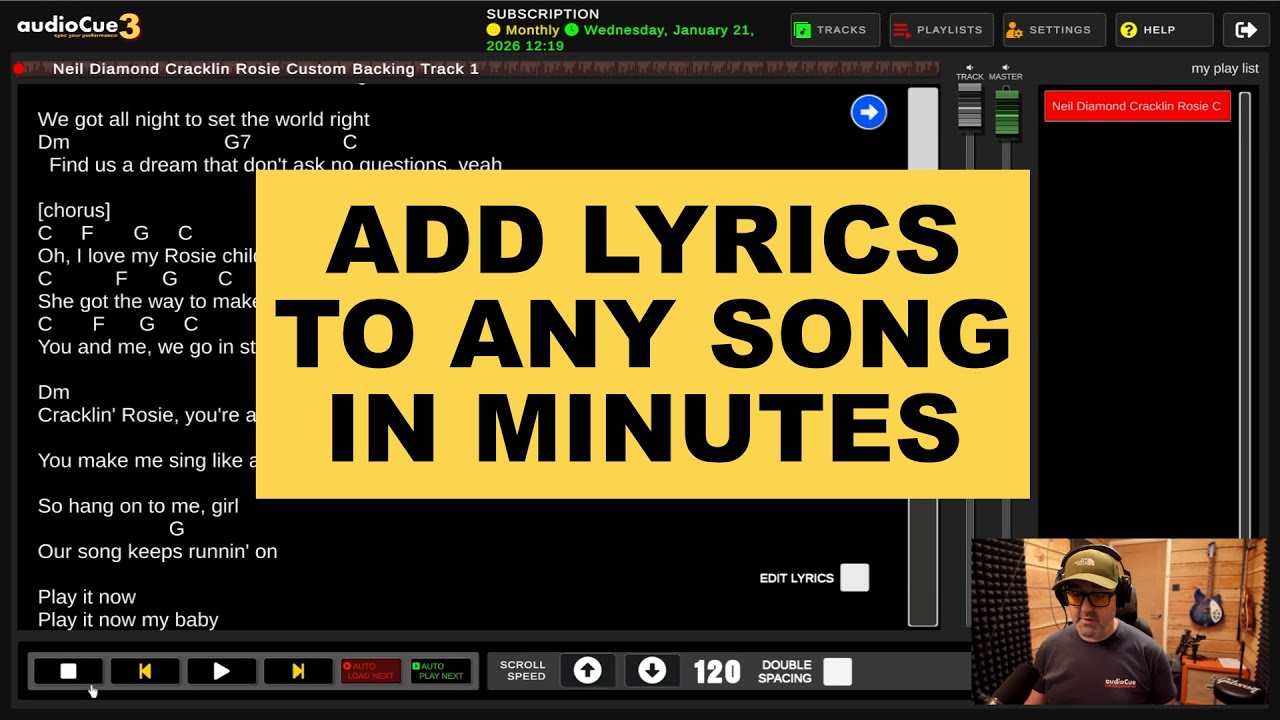
In this short video I show you how to add lyrics to any backing track using AudioCue.
This is exactly how I used to set songs up for gigs and practice — quick, simple, and without jumping between apps.
I’m using Cracklin’ Rosie by Neil Diamond as a real-world example.
Download AudioCue for free here:
https://audiocue.co.uk
Backing track used in this video (not free):
https://www.karaoke-version.co.uk/custombackingtrack/neil-diamond/cracklin-rosie.html
AudioCue lets you run lyrics and backing tracks together, making practice and live performance far easier.
#audiocue
#backingtracks
#lyrics
#livemusic
#musicians
#gigging
#musicpractice
#solomusician
#openmic
#ipadmusic
#performingmusician
#practiceguitar
#singersongwriter
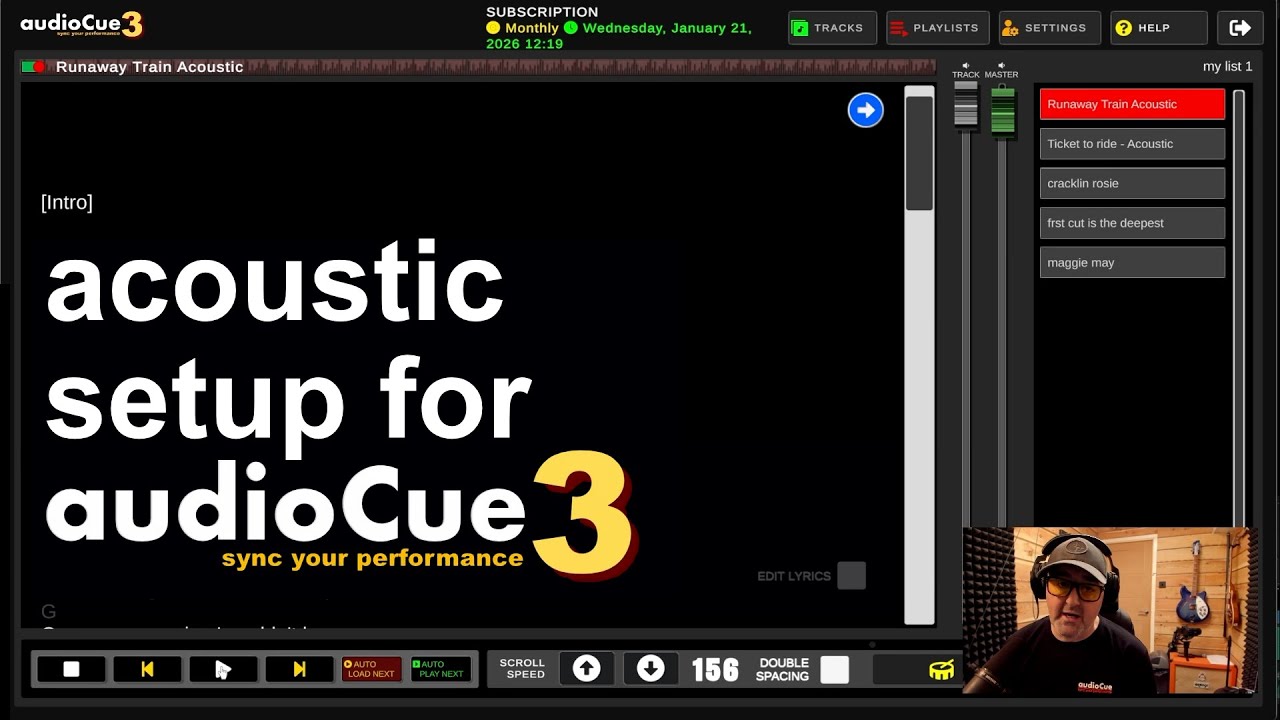
In this tutorial I show how to set up AudioCue for acoustic use, including using the built-in drum sequencer.
00:00 Intro
00:15 Add your first track
01:02 Add lyrics to a song
02:22 Create a playlist
02:54 Add songs to a playlist
03:36 Play songs and playlists
04:20 Add drums using the sequencer
This is aimed at musicians who play acoustic, do open mics, or practice at home and want solid timing without full backing tracks. I walk through setting up songs, adding lyrics, configuring the drum sequencer, and using it live and for practice.
If you already use audioCue for backing tracks, this will feel familiar — the workflow is intentionally simple so you can focus on playing, not fiddling with software.
audioCue is designed for real musicians who want something reliable for practice and live use.
Download AudioCue here:
https://audiocue.co.uk
Hashtags:
#audiocue
#acousticguitar
#drumsequencer
#solomusician
#openmic
#musicpractice
#guitarpractice
#livemusic
#songwriting
#musiciansoftware
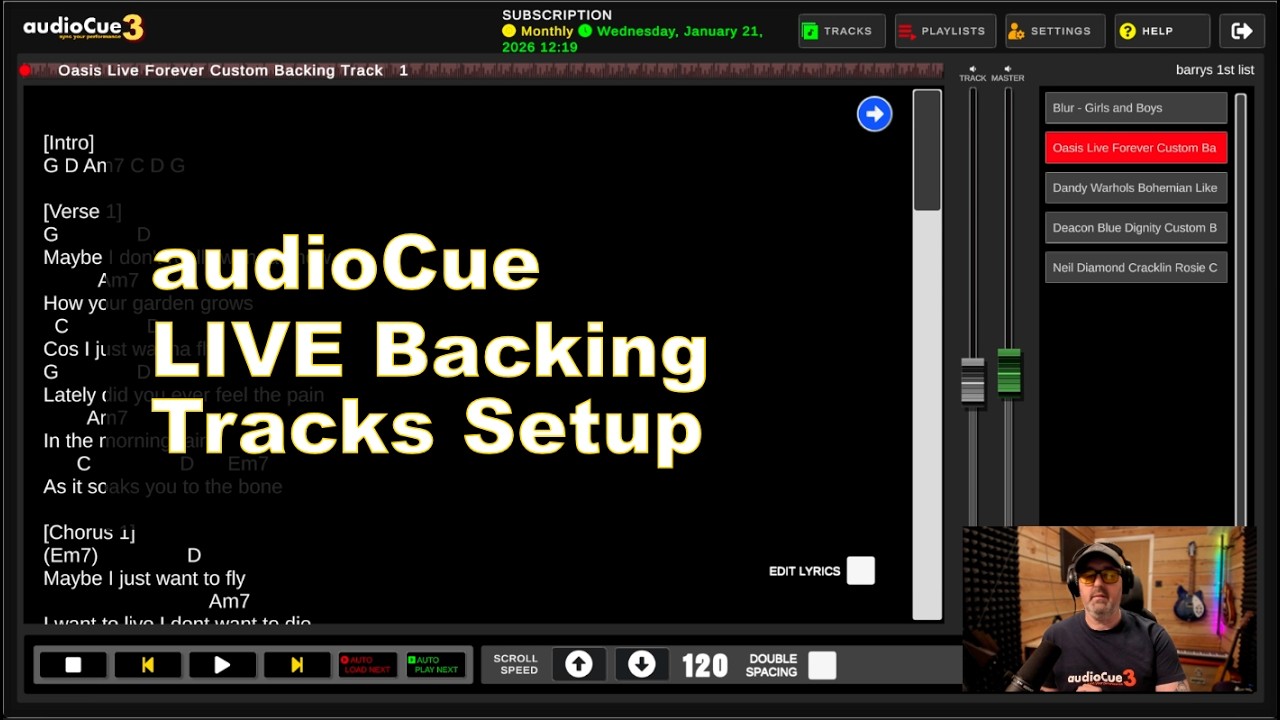
This video shows how I use AudioCue for backing tracks from start to finish.
I cover importing tracks, organising songs, setting up lyrics, building playlists, and actually playing live with it. This is the exact setup I use myself – nothing staged, nothing theoretical.
If you’re practising at home, rehearsing, or playing live and want a backing tracks setup that doesn’t get in the way, this’ll show you how it works.
You can download AudioCue free from here:
https://audiocue.co.uk
⸻
Chapters
00:00 What this video covers
00:23 Adding Your Tracks to audioCue
01:53 Adding Lyrics to Tracks
03:32 Building playlists and using the Player
04:41 Matching up your lyrics to your audio
#audioCue
#backingtracks
#liveperformance
#solomusician
#guitarist
#openmic
#livemusicsetup
#musiciantips
#performingmusician
#musictech
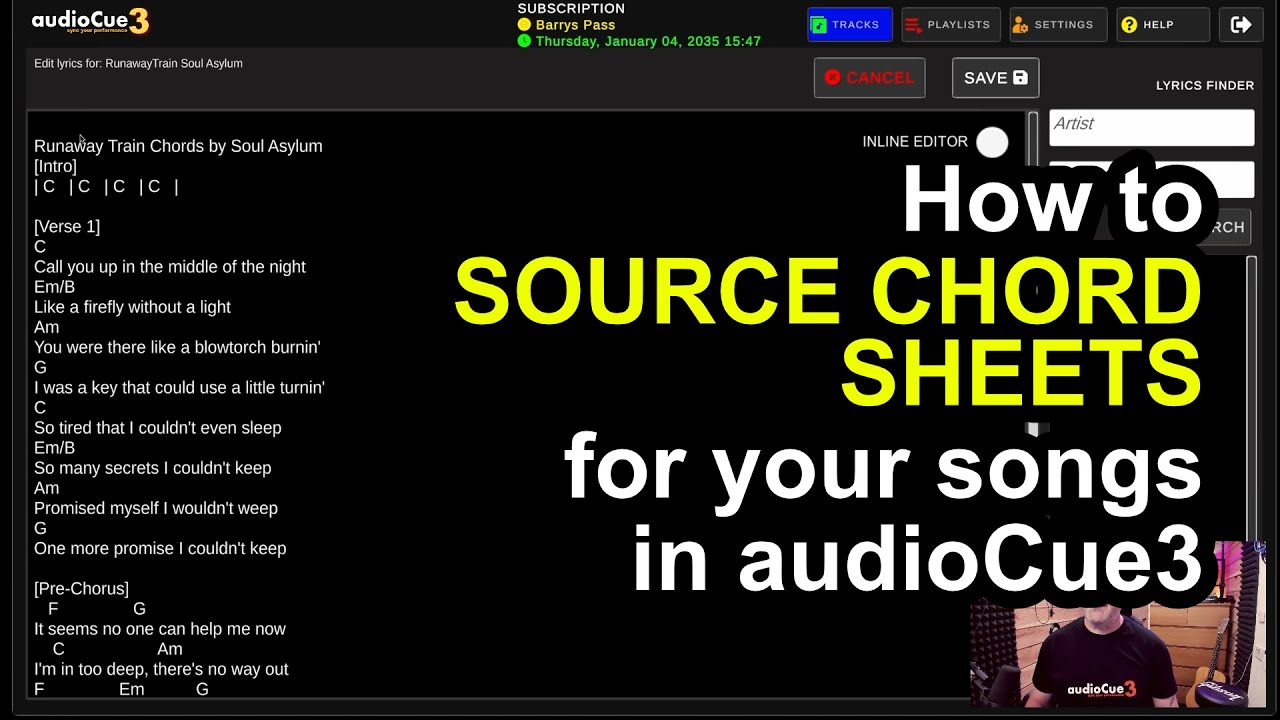
Get your chords and lyrics from Ultimate Guitar right in to audioCue3 for quick and easy set up of any song.
In this tutorial, I’ll show you how to copy chord sheets from Ultimate Guitar (or any tab site), clean them up, and drop them into your AudioCue lyrics view — so you’ve got everything in one place on stage. This way your lyrics prompter becomes a full on practicing and gig ready chord and lyrics prompter right on 1 screen.
? Perfect for live with backing tracks, acoustic gigs, open mics, and rehearsals.
? Keep lyrics and chords in full view, scrollable, and gig-ready.
? Works across all devices — tablet, laptop, desktop, or mobile.
? Android, Apple, and Windows compatible.
? Download AudioCue free: https://audiocue.co.uk
? Head over to Ultimate Guitar for chord sheets: https://www.ultimate-guitar.com
? Upgrade to Premium for unlimited tracks and playlists — just £5/month.
? Missed the lyrics formatting tutorial? Watch it here: https://youtu.be/V0ba0vuD2n8
➡️ Next up: Formatting Lyrics and Chord sheets https://youtu.be/V0ba0vuD2n8
#AudioCue #UltimateGuitar #AddChords #LyricsAndChords #GiggingMusician #SetlistTools #BackingTracksApp #SoloPerformer #AudioCue3 #GuitarApp